> ## Documentation Index
> Fetch the complete documentation index at: https://bruno-a6972042-mintlify-8b44a422.mintlify.site/llms.txt
> Use this file to discover all available pages before exploring further.
# gRPC Request
Bruno provides comprehensive support for gRPC requests, enabling you to test and interact with gRPC services directly from the interface. With Bruno's gRPC support, you can:
* **Add Proto files** for enhanced IntelliSense and method discovery
* **Use Server Reflection** as an alternative to Proto files for automatic method suggestions
* **Call server methods** with full parameter support and type validation
* **Test real-time streaming APIs** including unary, server streaming, client streaming, and bidirectional streaming
## gRPC Interface
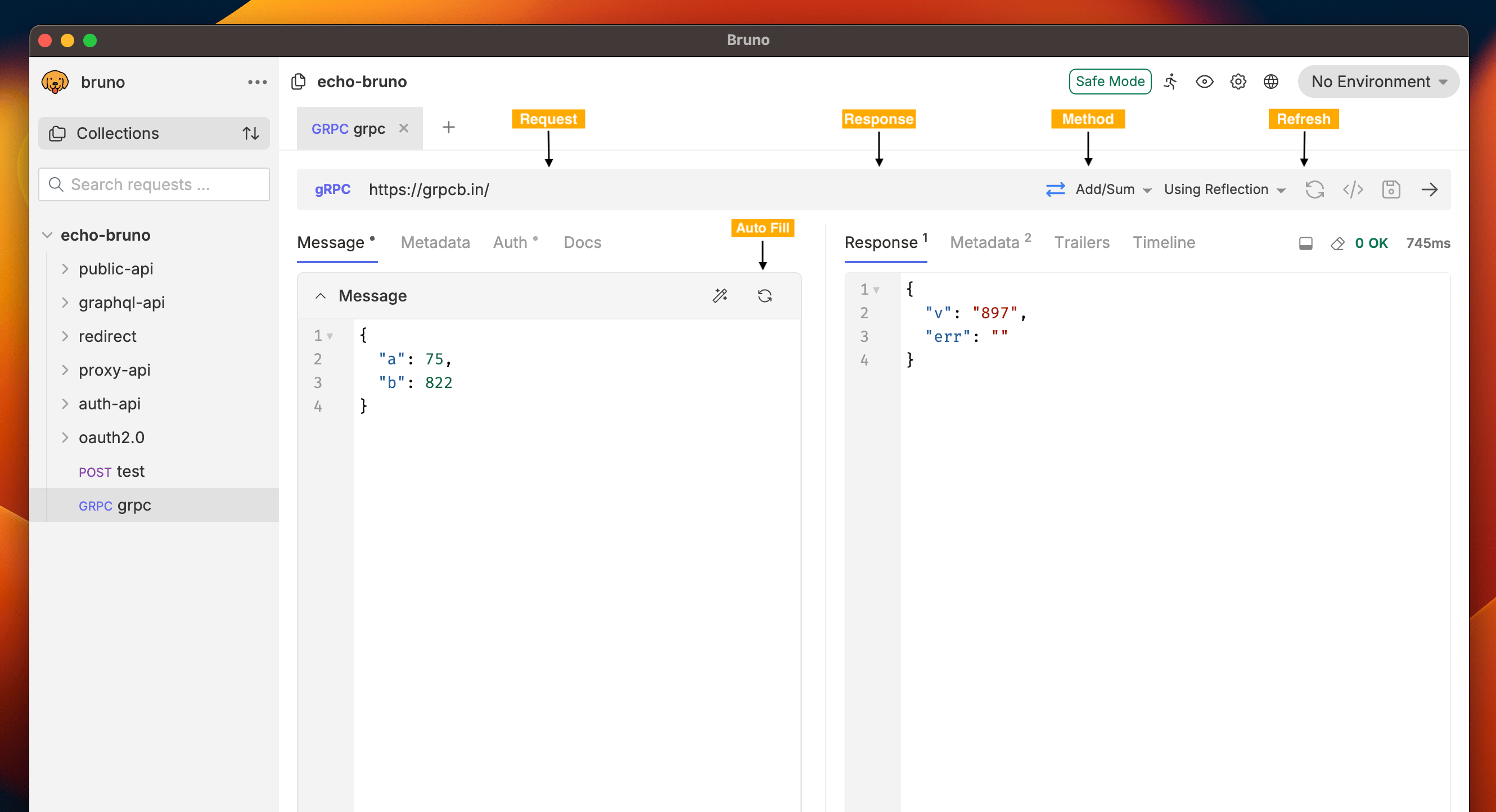
Bruno gRPC interface provides an intuitive way to interact with gRPC services. The interface automatically adapts based on whether you're using Proto files or Server Reflection.
 ## Creating a gRPC Request
### Step 1: Create a gRPC Request
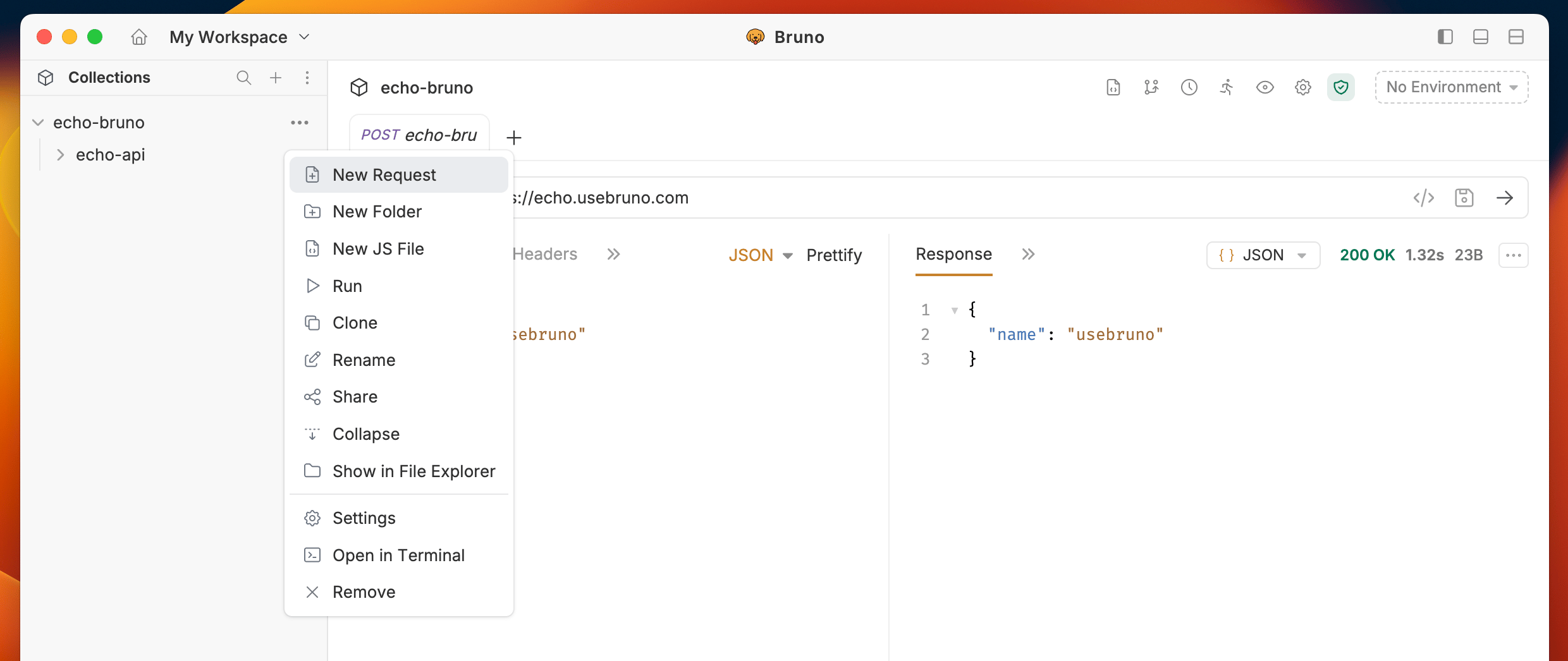
1. Open the collection context menu and select **New Request** from the dropdown
## Creating a gRPC Request
### Step 1: Create a gRPC Request
1. Open the collection context menu and select **New Request** from the dropdown
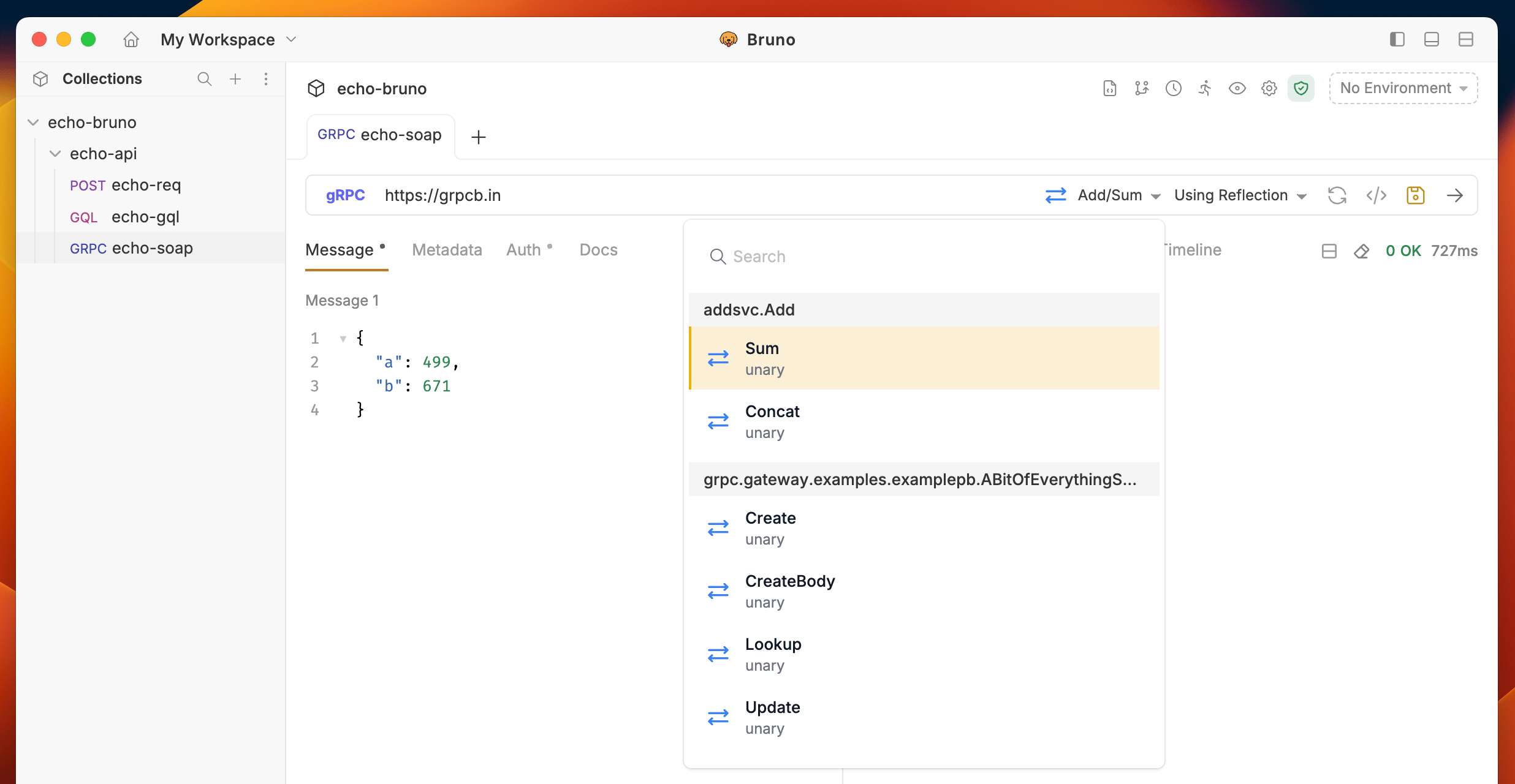
 2. Select **gRPC** as your request type
3. Enter the **service endpoint** in the URL field (e.g., `https://grpcb.in/`)
2. Select **gRPC** as your request type
3. Enter the **service endpoint** in the URL field (e.g., `https://grpcb.in/`)
 ### Step 2: Configure the Request
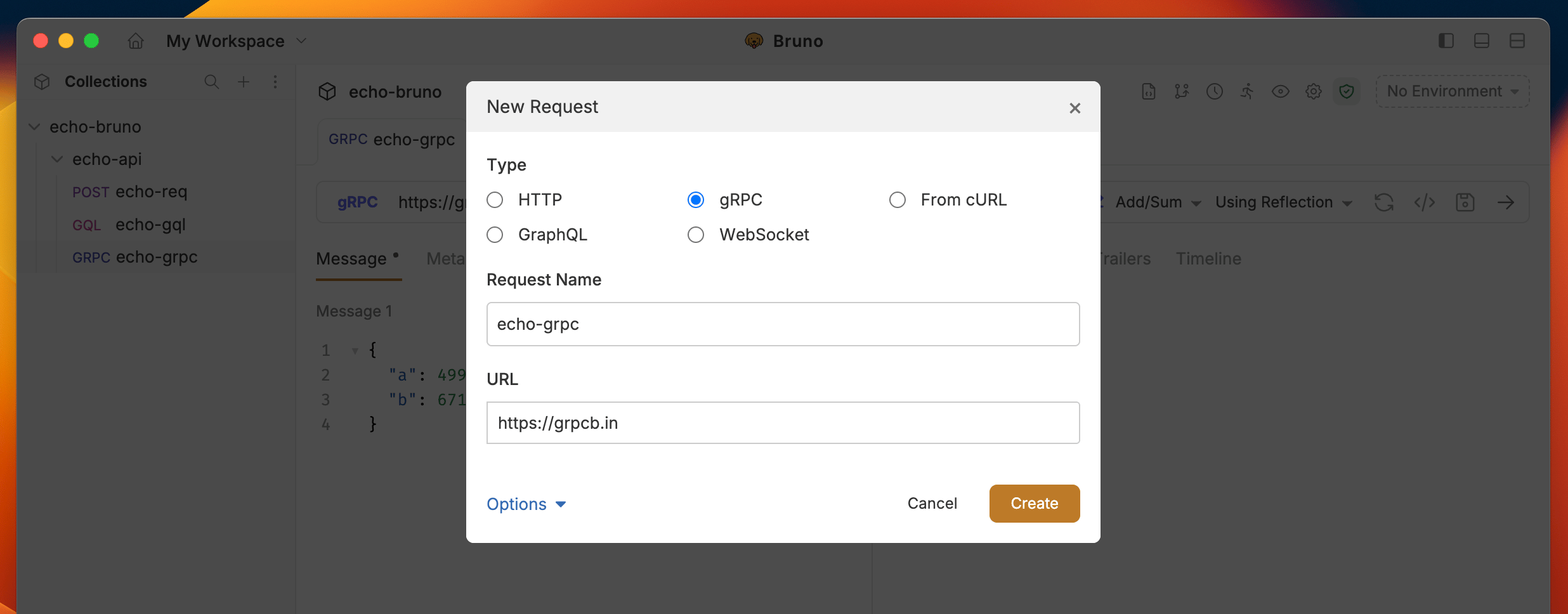
1. Click on **Reflection** and choose the **method** you want to call from the dropdown
**Refresh**: The gRPC refresh feature caches server information in memory for better performance. If you're running a local gRPC server and make changes to your service definitions, click the **Refresh** button next to the **Using Reflection** toggle to reload the latest changes from your server.
2. Use the **search functionality** in the dropdown to quickly find your desired method by typing the method name
### Step 2: Configure the Request
1. Click on **Reflection** and choose the **method** you want to call from the dropdown
**Refresh**: The gRPC refresh feature caches server information in memory for better performance. If you're running a local gRPC server and make changes to your service definitions, click the **Refresh** button next to the **Using Reflection** toggle to reload the latest changes from your server.
2. Use the **search functionality** in the dropdown to quickly find your desired method by typing the method name
 ### Step 3: Send the Request
1. Add any **required inputs** in the message section (auto generate with **Auto Fill** button)
2. Click the **Send** button to execute your gRPC request.
### Step 3: Send the Request
1. Add any **required inputs** in the message section (auto generate with **Auto Fill** button)
2. Click the **Send** button to execute your gRPC request.
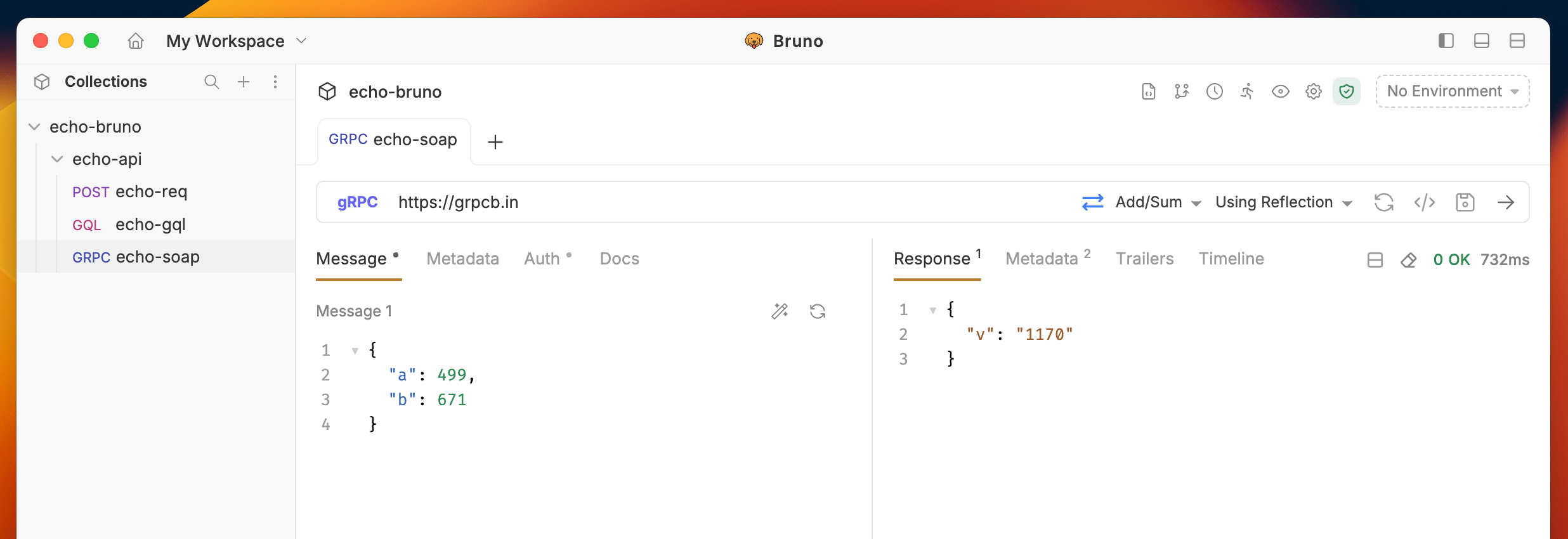 You'll see the response in the **Response** section with detailed information about the request execution.
## Adding metadata
gRPC uses metadata instead of HTTP headers. Use metadata to send key-value pairs such as access tokens or tenant identifiers with a request.
1. Open your gRPC request and select the **Metadata** tab in the request pane.
2. Click **Add Metadata** and enter the key and value.
3. Use the checkbox next to an entry to enable or disable it.
Metadata values support variable interpolation, so you can reference environment or collection variables like `{{token}}`.
For authentication methods such as Basic, Bearer, or API key, use the **Auth** tab instead of adding metadata manually.
To learn about proto files, navigate to the [Adding Proto file section.](./grpc-proto)
You'll see the response in the **Response** section with detailed information about the request execution.
## Adding metadata
gRPC uses metadata instead of HTTP headers. Use metadata to send key-value pairs such as access tokens or tenant identifiers with a request.
1. Open your gRPC request and select the **Metadata** tab in the request pane.
2. Click **Add Metadata** and enter the key and value.
3. Use the checkbox next to an entry to enable or disable it.
Metadata values support variable interpolation, so you can reference environment or collection variables like `{{token}}`.
For authentication methods such as Basic, Bearer, or API key, use the **Auth** tab instead of adding metadata manually.
To learn about proto files, navigate to the [Adding Proto file section.](./grpc-proto)